Gemini for Beginners: A Simple Way to Do Less Busywork (and Keep Control)
If your brain feels noisy, you’re not alone.
Some days, it feels like everything takes twelve steps: open the email, reread the thread, scroll, search for details, copy, paste, then rewrite. Yet somehow you still forget the one important line.
Gemini can help with that.
Not by “doing your life for you,” but by handling the busywork:
summarizing long stuff
finding key details
drafting first versions
You stay in charge. Gemini helps you move faster.
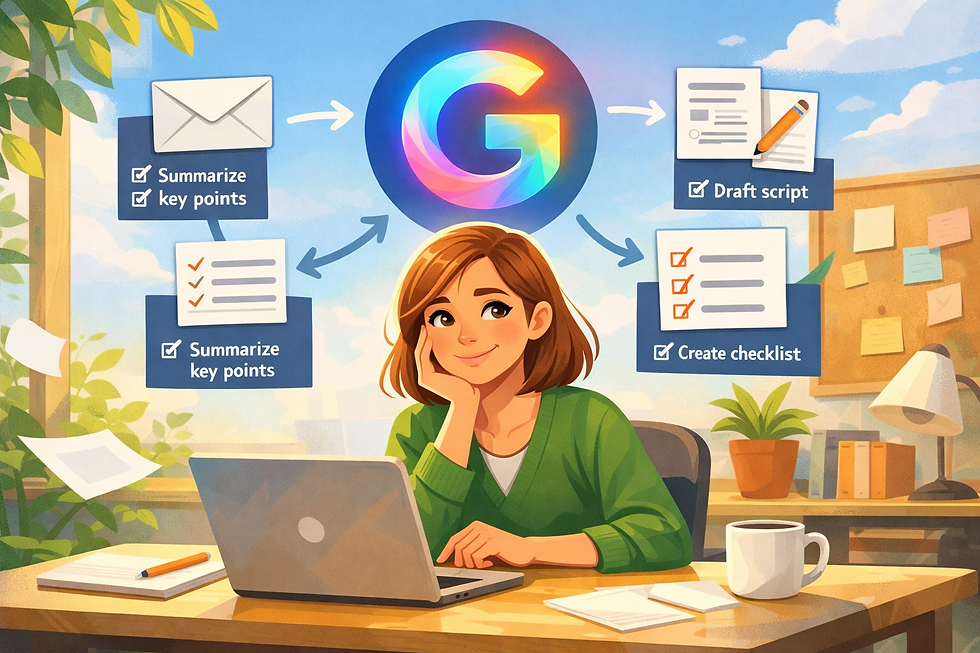
What Gemini is best at (in plain words)
Gemini is helpful when you have something messy, like a long email thread or a long document, and you want it to become clear.
Think of Gemini like a helper who can:
Shrink (summarize)
Spot (find key details)
Start (draft a first version)
And you decide what to keep.
Where you’ll use Gemini most (beginner-friendly)
1) Gmail: Summaries and action items
Email threads can get long fast. Gemini can summarize threads (especially when there are multiple replies) and help you see what matters.
Try prompts like:
“Summarize this email thread in 5 bullets.”
“What are the action items?”
“What decisions were made?”
Google also describes using Gemini in Gmail to find key details in your inbox, like confirmation info or important items buried in emails.
Why this matters: You spend less time hunting and more time doing.
2) Gmail: Drafting replies (you edit, not Gemini)
Gemini can draft emails and help refine tone and clarity.
Try prompts like:
“Draft a short, friendly reply. Keep it under 6 sentences.”
“Make this sound more polite and clear.”
“Rewrite this so it’s confident but kind.”
Important: A draft is a starting point. You still review it, because you know your voice best.
3) Google Docs: Quick summaries
When a document is long, you don’t always need to read every word first.
Gemini in Docs includes summary help (for example, AI summary building blocks like @Summary).
Try:
“Summarize this in 5 bullets.”
“Explain this like I’m new to it.”
“List the top 3 points.”
Why this matters: You get clarity faster, especially when you’re busy.
A simple “Gemini starter routine” (5 minutes)
Here’s a quick routine you can use anytime:
Open the email or doc
Ask for a summary
Ask for key details (dates, names, decisions)
Ask for a draft response or next-step list
Review and edit (always)
This is how you cut down on the “copy-paste Olympics.”
Quick safety note (worth 10 seconds)
AI is helpful, but it can be tricked or mistaken sometimes, especially with email summaries.
So for anything important (money, security, deadlines), treat Gemini like a smart assistant and double-check the facts in the original message.
Trust… then verify.
Copy/paste prompt box (beginner-friendly)
Gmail
“Summarize this email thread in 5 bullets.”
“What are the action items?”
“Draft a short, friendly reply.”
Docs
“Summarize this document in 5 bullets.”
“Turn this into a checklist.”
Closing thought
Gemini doesn’t replace your judgment. It replaces the parts of your day that feel like too many steps.
And honestly? Your time is too valuable for “rename-file-final-FINAL-for-real.”
New to AI?
If you're just getting started, visit the Start Here page to explore beginner-friendly tools and simple tutorials that will help you begin learning AI step by step



Comments